


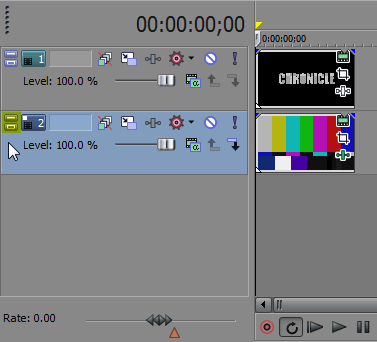
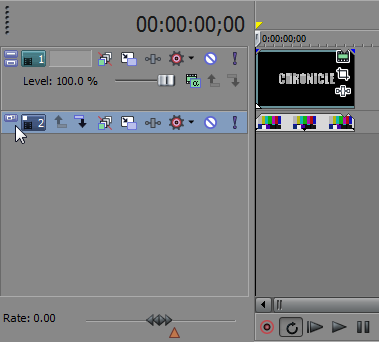
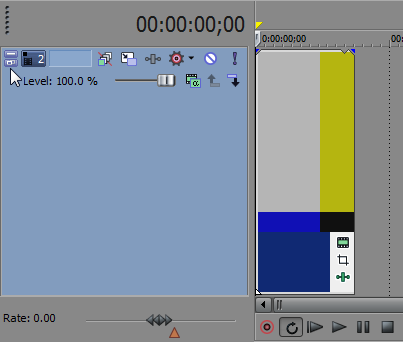
Did you know you can change the height of each track in Sony Vegas? You have the option to Minimize or Maximize individual track heights by clicking the buttons to the far left of the track. Minimize will minimize a track vertically while Maximize will zoom into the track vertically so it fill the entire timeline. Press Ctrl+` to return all tracks to the default height.
If you enjoyed this post, please consider leaving a comment or sharing it along with your friends! AuthorRobert began making video tutorials on YouTube nearly 6 years ago. Teaching Photoshop and Sony Vegas, he's made over 200 video tutorials helping almost 4 million people and has been recognized by Sony. He loves being able to share his knowledge with others and inspiring them to create something awesome. Related Articles  Occasionally, you may want to re-size the plug-in window in order to fit all the plug-in settings on the screen at... read more →  Quickly duplicate any timeline events in Sony Vegas by holding Ctrl while dragging the media over to your target position.... read more →  Cluttered Project Media window? Need to clean house? Click the Remove All Unused Media from Project button to remove all media... read more →
|