


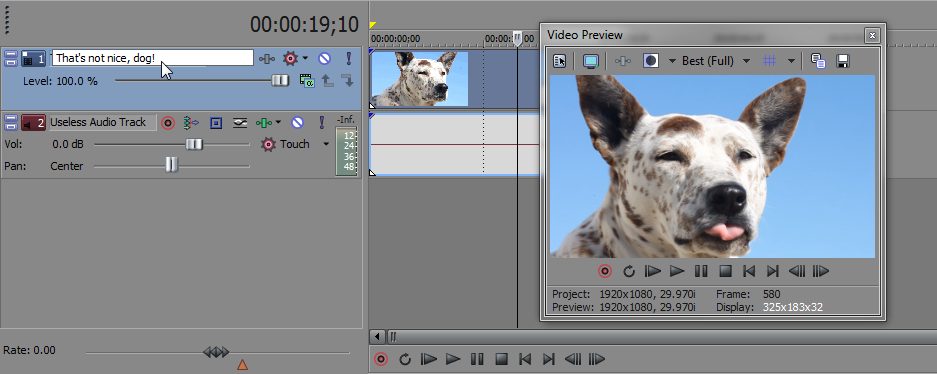
Did you know you can assign names to tracks in Vegas Pro? Often overlooked, there’s a small area where you can input text on each track. Simply double-click this blank area called the Scribble Strip and type in any name for that track. Once done, press Enter to save the name. If you don’t see the Scribble Strip, simply expand the track to reveal it.
If you enjoyed this post, please consider leaving a comment or sharing it along with your friends! AuthorRobert began making video tutorials on YouTube nearly 6 years ago. Teaching Photoshop and Sony Vegas, he's made over 200 video tutorials helping almost 4 million people and has been recognized by Sony. He loves being able to share his knowledge with others and inspiring them to create something awesome. Related Articles  Sony Vegas Pro allows you to import layered PSD files into the timeline. Just Right-Click and Drag the file to the timeline. Once... read more →  You can customize the toolbar in Sony Vegas to your specific needs. To add or remove tools, simply go to... read more →  You can de-clutter your Sony Vegas timeline by Grouping Tracks. Select two or more tracks to group together. Right-Click one... read more →
|