



[vimeo id=”32800195″ width=”600″ height=”350″]
Today, I’ll show you how to create this “Cool Blue” text effect I put together in Photoshop. You can download the PSD file below! If you like this, feel free to share it along!
How-to:
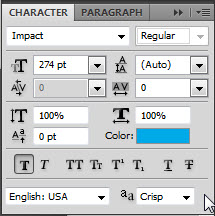
1. Start Photoshop and create a new document. I set the size to 1280px by 720px but you can make it bigger or smaller depending on the project your working on. Next I added some text with the following styles;
- Font: Impact
- Size: 274 pt
- Color: #00a9e8
2. Then I’ve added the following layer styles to my text layer.
- Drop Shadow
- Inner Shadow
- Inner Glow
- Bevel and Emboss
- Stroke
Click through the tabs below to see the settings I used for each layer style.
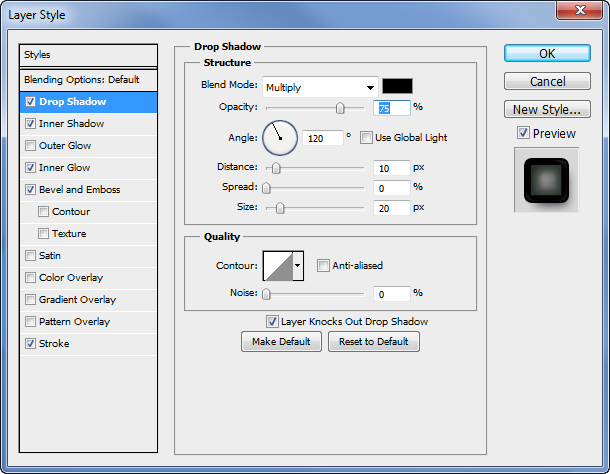
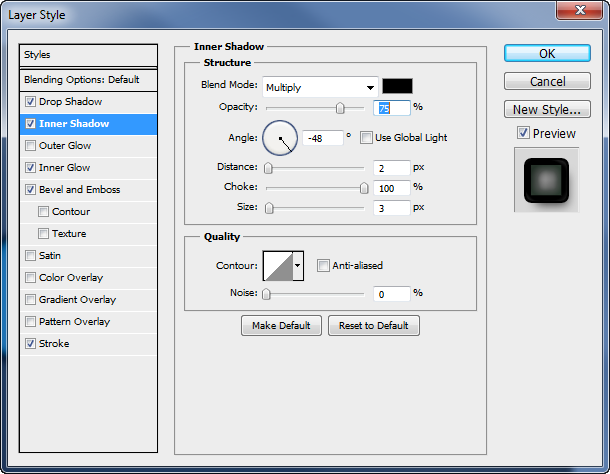
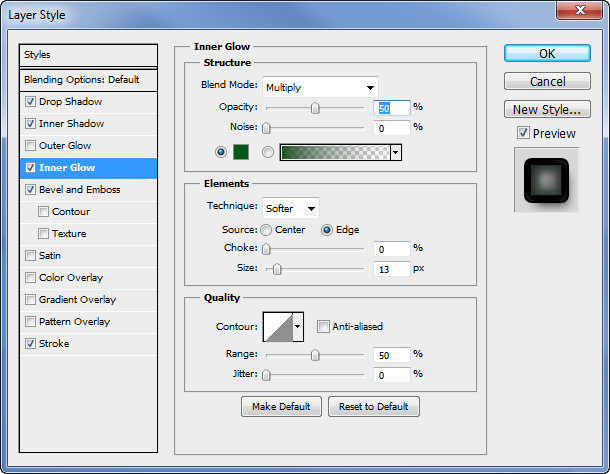
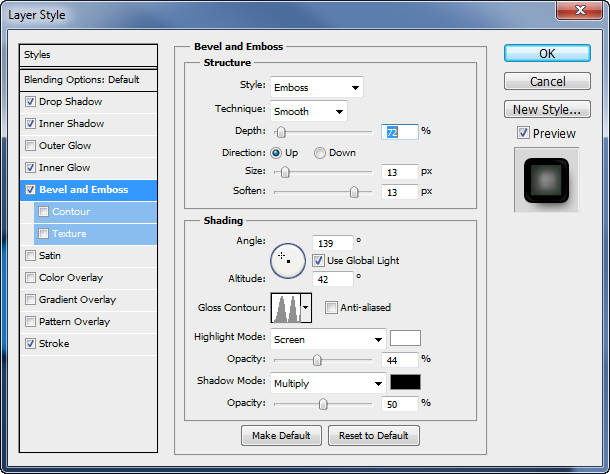
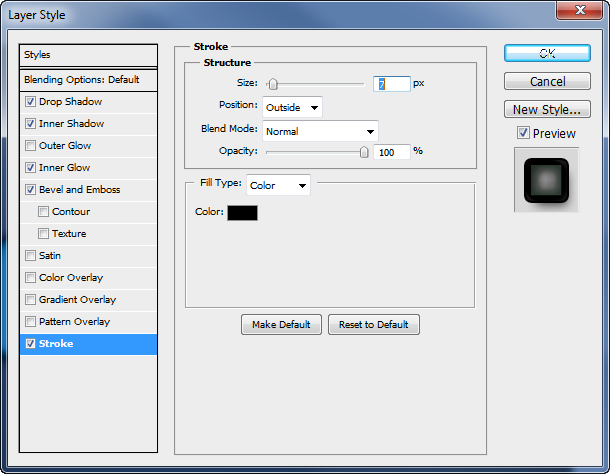
I’ve also added a nice little grey background for the text too. That’s it! You can download the PSD below and copy the layer styles from my text layer to your own!
[su_button url=”https://s3.amazonaws.com/robertsproductions/psd/CoolText_psd.zip” style=”flat” background=”#3a99e5″ size=”6″ wide=”yes” center=”yes” radius=”0″ icon=”icon: download”]Download[/su_button]
Click the button on the above to download the PSD File!
If you liked this and are looking forward to more, please post your thoughts in the comments below! I only want to create content useful to you guys so hopefully this helps!


Comments